Technical How-To
BeepBox Tutorial: Build a Harder-Edged Dance Track for Free
In this article
- Listen to the finished track
- What is BeepBox?
- 1. How to set up BeepBox for your first track
- 2. How to write a BeepBox melody with some bite
- 3. How to make a BeepBox bass line that moves
- 4. How to make drums in BeepBox: a beat and a fill
- 5. Add offbeat chords without crowding the groove
- 6. Give the synth sounds some character
- 7. Arrange a complete BeepBox song in 32 bars
- 8. How to save a BeepBox song and export WAV audio
- BeepBox questions that come up along the way
- All five editable BeepBox projects
Sometimes the quickest way to get a tune going is to close the DAW. No session template to choose, no plug-in folder to browse, no routing to sort out. Open BeepBox, click a few notes into the grid, and you have something to work with.
That small grid can do more than its game-console appearance suggests. In this BeepBox tutorial, we’ll build Aftercurrent: a 126 BPM electronic track in A minor, with a sharp-edged lead, a bass line that pushes between the beats, and drums that give it somewhere to go. Then we’ll turn those parts into a 32-bar arrangement with a breakdown, a rebuild and an ending.
You can follow the recipe exactly or open the projects and start changing things. Each example below has an audio player and an editable BeepBox link, so you can hear a part, look at how it works, and try your own version.
Listen to the finished track
Open the complete editable BeepBox project. Press Play in BeepBox to hear it; the purple loop spans all 32 bars. The four shorter teaching projects below isolate the parts, so you can hear what each contributes.
Already comfortable with the pattern grid? Continue with our JummBox tutorial for FM bass, deeper sound design and a complete electronic arrangement, with its own audio examples and editable projects.
For a quick overview of the software, features and browser-based workflow, see our BeepBox entry in the Free Software Directory.
What is BeepBox?
BeepBox is a free music sequencer and synthesizer that runs in your browser. You draw notes into patterns, choose their sounds, and arrange the patterns into a song. There’s no need to connect a MIDI keyboard to get started.
Its sounds lend themselves to chiptune and retro electronic music, but the useful part is how quickly you can hear an idea. If you’ve ever lost a promising riff while choosing a snare sample, that simplicity has a certain appeal.
For this track, think of the four channels as four musicians: the lead carries the hook, the bass supplies movement, the chords fill the spaces, and the drums keep everyone pointed in the same direction. Start by listening to the finished version above. You’ll hear those roles more clearly as we pull it apart.
1. How to set up BeepBox for your first track
- Open BeepBox. Use File → New Blank Song if you want to start from scratch. Save any existing song URL first.
- Set Scale to
normal :(, BeepBox’s natural-minor/Aeolian scale, and Key to A. The notes are A, B, C, D, E, F and G. - Use Edit → Change Beats Per Bar… and enter 4. Then set Tempo to 126 and Rhythm to ÷4 (standard). That gives sixteen sixteenth-note positions per bar.
- Use Edit → Change Song Length… to begin with four bars. Keep three pitched channels and one drum channel. Turn on Preferences → Show Piano Keys to make pitches easier to identify.
Before adding notes, get comfortable with the numbered boxes below the grid. Each horizontal row is a channel. Each number calls up a pattern on that channel, and 0 means silence. The cyan channel’s pattern 1 has nothing to do with the yellow channel’s pattern 1; each part has its own set.
Here’s the detail that catches beginners: use pattern 1 in six places, and an edit to pattern 1 changes all six. That’s handy when fixing a wrong note. For a new phrase, choose an unused pattern number and copy the notes into it before making changes.
2. How to write a BeepBox melody with some bite
Start with the hook. Select the top, cyan channel and choose PWM distortion from the Type menu’s Distortion Presets. It has an edge that suits this track, and its changing pulse width adds movement to the tone. Lower the instrument-volume slider two steps from its starting position; it needs to share the mix with bass and drums later.
Click a gray pitch row to add a note, drag horizontally to change its length, and click an existing note to remove it. The table below gives you the exact first bar. Count 1 to 16 across the grid; each position is a sixteenth note. A length of 2 lasts twice as long as a length of 1. Leave the spaces between notes empty.
| Start position | Pitch | Length |
|---|---|---|
| 1 | A4 | 1 |
| 3 | C5 | 1 |
| 4 | E5 | 1 |
| 7 | C5 | 1 |
| 9 | G5 | 2 |
| 13 | E5 | 2 |
| 15 | D5 | 2 |
Listen for the quick C–E pickup, then the space after it. That pause gives the next note somewhere to land. Keep adding notes to every gap and the phrase loses that little push and release.
Now give the hook something to answer. Pattern 2 uses E–F–E–C–D–C. Pattern 3 climbs through C–E–G–A, then comes back down to G and E. Pattern 4 takes a breath after D–E before finishing with A–G. Open the four cyan boxes in the melody project to see their exact rhythms. Together they make a phrase that develops across four bars.
Listen for: the difference between the clipped opening notes and the longer notes that follow. The pitches give you the tune; the lengths and gaps give it a personality.
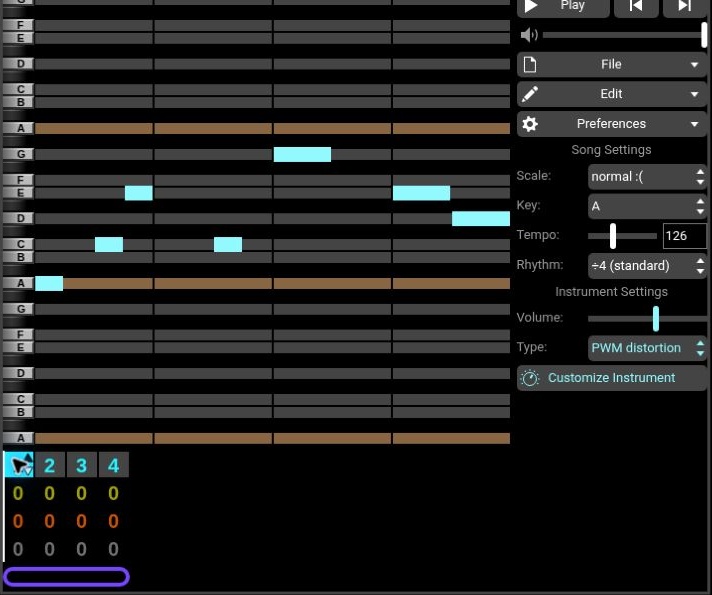
Edit the melody-only project. Select each of its four cyan boxes to inspect the variations.
3. How to make a BeepBox bass line that moves
The lead is a sketch on its own. Add the bass and it starts suggesting a track. Select the yellow channel and choose FM bass from Retro Presets. The four patterns follow A3, F3, C3 and G3, with fifths, passing notes and octave jumps to keep them moving.
The trick is to let some bass notes arrive between the main beats. That’s syncopation: the drums establish where the beat is, while the bass occasionally leans ahead of the next one. Here’s the exact first bar:
| Start position | Pitch | Length |
|---|---|---|
| 1 | A3 | 1 |
| 4 | A3 | 1 |
| 6 | E4 | 1 |
| 8 | A3 | 1 |
| 11 | D4 | 1 |
| 13 | A3 | 1 |
| 15 | A4 | 1 |
The repeated A keeps the bar grounded, the E adds a fifth, and the D briefly changes the color. The final octave jump gives the phrase a lift. Keep these notes short. A held bass note would fill the low end, but it would also cover the gaps that make this rhythm work. Leave the bass at its preset volume for the recorded balance.
Try this: play the melody example, then the melody-plus-bass example below. Tap a steady beat through both. Notice how the bass adds momentum even though the lead hasn’t changed.
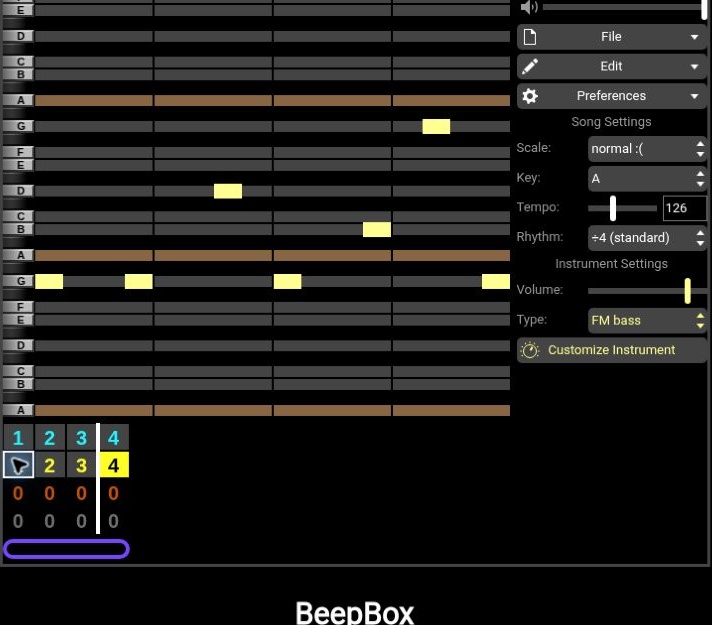
Edit the melody-plus-bass project. Compare it with Example 1 at the same playback volume: the bass changes the feel without adding more lead notes.
4. How to make drums in BeepBox: a beat and a fill
Give the bass something solid to work against. Select the bottom, gray channel and keep standard drumset. We’ll use a kick on every beat, a backbeat on two and four, and bright upper percussion ticking across the bar.
The editor shows drum icons rather than familiar kit labels, so count lanes from the bottom: the lowest lane is our kick, the third supplies the snare-like backbeat, and the ninth supplies the bright upper percussion. Enter these hits:
- Kick: positions 1, 5, 9 and 13—one on each quarter-note beat.
- Backbeat: positions 5 and 13—beats two and four.
- Upper percussion: positions 1, 3, 5, 7, 9, 11, 13 and 15—steady eighth notes.
To stack sounds, click above or below an existing hit at the same horizontal position. Once pattern 1 is running, let it play for a few bars. You should be able to tap along without having to think about it.
Now give the fourth bar a small nudge. Copy pattern 1 into an unused pattern 2 and add the fifth lane from the bottom at positions 14, 15 and 16. Those three quick hits announce that the phrase is turning around. The drum-only example plays 1–1–1–2, so you can hear the fill in context.
We also use two less crowded patterns in the full song: pattern 3 keeps the kick and offbeat upper percussion, while pattern 4 leaves more space before a late backbeat fill. A quieter bar can make the next full beat feel bigger without turning anything up.
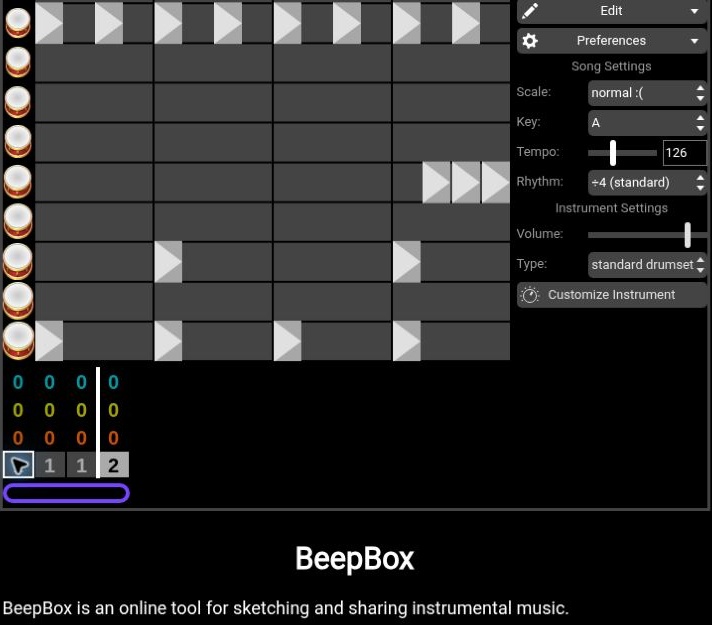
Edit the drum-only project. Select its last gray box to see pattern 2’s extra hits.
5. Add offbeat chords without crowding the groove
The track already has a tune and a rhythm. The chords give it a changing backdrop. Choose polysynth pad on the orange channel. Although the preset says “pad,” we’re going to play it in short stabs, so it bounces with the rhythm.
Build these four chords. Each is a triad: three notes played at the same time.
- Am: A2–C3–E3.
- F: F2–A2–C3.
- C: C2–E2–G2.
- G: G2–B2–D3.
Put each chord at positions 3, 7, 11 and 15, and make every stab one sixteenth note long. Count “one and two and three and four and”: the chords fall on the “ands,” in the spaces between the kicks.
Place the first note, then click above or below it at the same time position to add the other two. Reduce the channel volume three steps below its preset’s starting position. You want to feel these chords supporting the track rather than hear them competing with the lead.
Listen for: the regular offbeat pulse as Am changes to F, C and G. The rhythm stays put while the harmony moves underneath it.
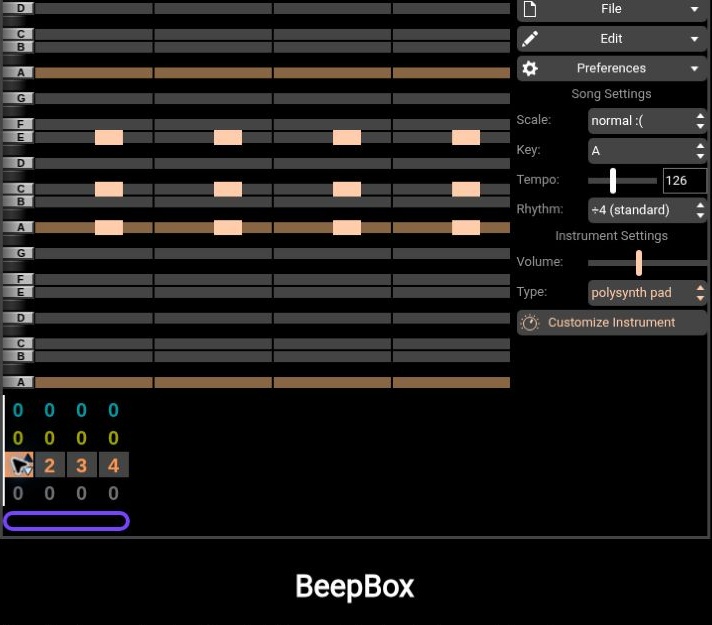
Edit the harmony-only project. This example retains the quieter instrument level used in the full mix.
6. Give the synth sounds some character
Once the notes are working, it’s tempting to go preset hunting. First, look inside the sound you already have. On the lead channel, click Customize Instrument to reveal the pulse width synthesizer behind the preset. Simply opening these controls won’t change the sound.
Three details are worth listening to here: a low-pass EQ softens the brightest edge, delayed vibrato introduces pitch movement, and the pulse width → swell 1 envelope changes the shape of the waveform as a note plays. That last one helps a longer note feel less static.
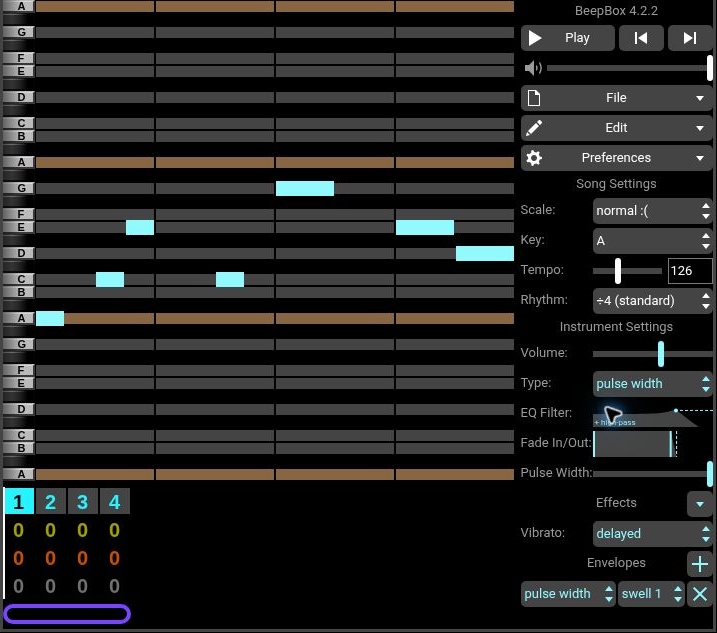
The parts also get some separation from their different tones. The FM bass has its own attack, the lead has that moving pulse-width sound, and the chords use the polysynth pad’s sawtooth-based chip wave. Giving each part a different character helps you hear what it’s doing.
Try this: save a copy of the lead’s song URL, then change one filter or envelope setting. Listen to the longer notes as well as the short ones. A setting that makes a sustained note interesting may barely have time to act on a quick stab. Keep the version you prefer; the audio examples here use the original settings shown above.
If you’d like to explore the frequency content of your own sounds, TAM also has a free online audio spectrum analyzer.
7. Arrange a complete BeepBox song in 32 bars
A good four-bar groove is a satisfying thing. It can also outstay its welcome surprisingly quickly. The next job is to give the listener a reason to want the following four bars.
Increase the song length to 32 bars. With a numbered box selected, use number keys to choose its pattern and arrow keys to move between boxes. Put 0 wherever a part should drop out. We’ll introduce sounds gradually, take some away for the breakdown, then bring the full groove back.
Here’s the arrangement used in Aftercurrent. Listen to the finished track again and follow the changes:
| Bars | Role | What changes |
|---|---|---|
| 1–4 | Introduction | Four lead phrases over the lighter drum pattern; bass and chords stay out. |
| 5–8 | Bass entrance | Full beat and bass arrive. The lead rests in bar 6; a drum fill closes bar 8. |
| 9–12 | Full groove | Offbeat harmony joins the melody, bass and drums. |
| 13–16 | Variation | Lead patterns run 3–2–1–4, with extra drum variation into the transition. |
| 17–20 | Breakdown | Drums drop out for two bars. Bass and lead alternate gaps while chords continue. |
| 21–24 | Rebuild | Lighter drums return, followed by the full beat; chords re-enter in bar 23. |
| 25–28 | Final peak | All parts play, with rising lead material and alternating drum fills. |
| 29–32 | Ending | Lead and harmony thin out, then bass and an Am stab return in the last bar. |
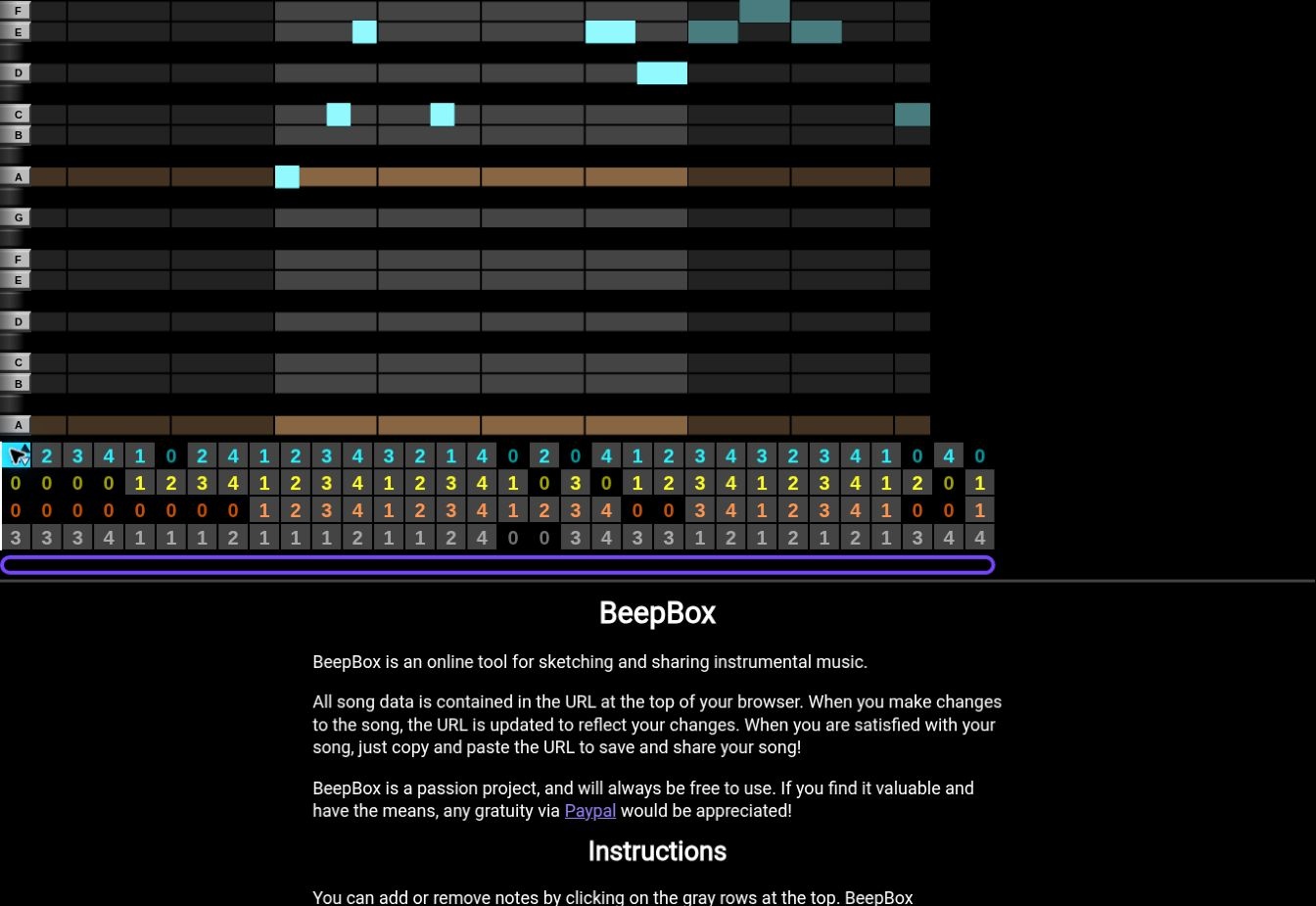
Choose Preferences → Choose Layout… → Long for a wider overview, then drag the purple loop’s right end to the end of bar 32. For the exact pattern assignments, open the complete project and inspect its lower grid. The isolated teaching projects use a four-bar loop; the finished track uses the longer arrangement above.
8. How to save a BeepBox song and export WAV audio
Before closing the tab, save the song. Use File → Copy Song URL and keep the entire link, including everything after the # symbol. That long string contains the editable music. Copy a fresh URL after making changes; the old one still opens the earlier version.
For audio, choose File → Export Song…, enter a filename, select .wav and leave Loop Count at 1. Click Export, wait for synthesis to finish, then click Save File if that button appears. The full project has its loop across all 32 bars, so one loop produces the complete 60.95-second track. The four-bar examples each run 7.62 seconds.
For a project-file backup, select .json (for any BeepBox version) and reopen it later through File → Import Song…. If you want to carry the idea into a DAW, MIDI gives you the notes to work with, while WAV preserves the BeepBox sounds you’ve been hearing.
Once you have a version saved, make one deliberate change: leave the lead out for a bar, shift a bass note, or hold back the drums before the final section. Play it through from the beginning. The useful question is whether that change makes you look forward to what comes next.
BeepBox questions that come up along the way
Why does editing one pattern change several bars?
Those bars are using the same pattern number on the same channel. To make a variation, select an unused pattern number, paste the original notes into it, then edit that new pattern.
Why does BeepBox keep looping only part of my song?
The purple loop below the arrangement controls the repeating section. Drag its ends to cover the bars you want to hear. In the full project above it spans all 32 bars; in each isolated demonstration it spans four.
Do I need to know music theory to follow this tutorial?
You can start with the note tables and editable examples. Setting the key to A and the scale to normal :( limits the available pitch rows to A natural minor, which makes it easier to experiment. Pay attention to the spaces and note lengths as well as the pitches.
All five editable BeepBox projects
- Melody only — four bars
- Melody plus bass — four bars
- Drums only — four bars
- Harmony only — four bars
- Aftercurrent — full 32-bar arrangement
Created and checked in BeepBox 4.2.2. Audio is the application’s direct stereo WAV export; screenshots are actual application captures, cropped only for readability. BeepBox is developed by John Nesky. Official application · Source code.